What It Does
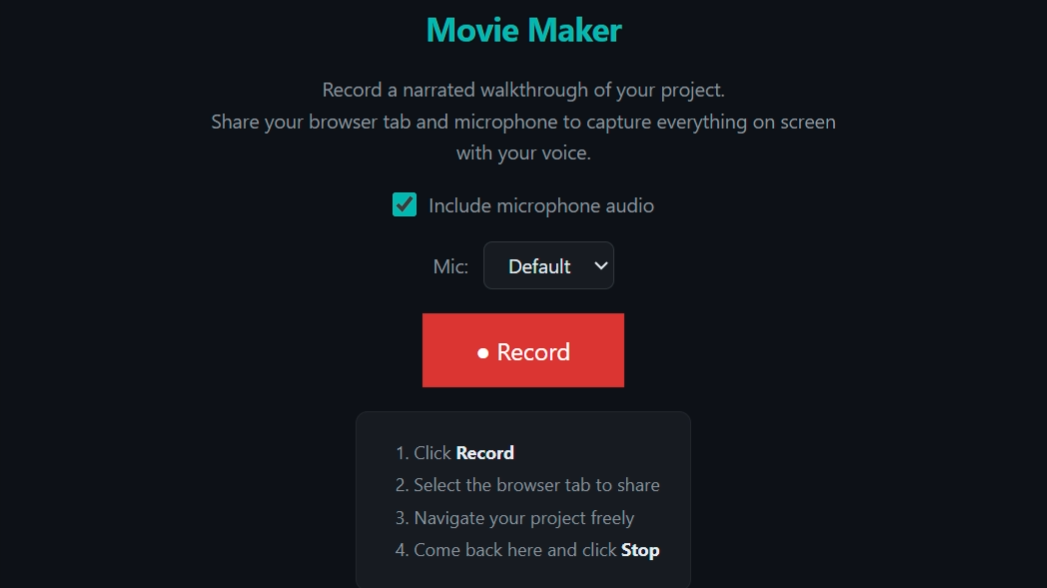
Movie Maker turns your Gallia Viewer into a full video production studio. Record narrated walkthroughs of your hardware projects — PCB reviews, 3D model tours, schematic explanations — with a single click. The recording captures your browser tab video and microphone audio, then saves it to a searchable Library with automatic silence detection.
Key Features
- One-Click Recording — Record button in the GV toolbar works from any view (3D, schematics, file explorer, etc.). No need to be on the Movie Maker page.
- Silence Detection — An
AnalyserNodemonitors your microphone in real-time. Stretches of silence (< 5/255 amplitude for 2+ seconds) are automatically tagged. - Smart Playback — Toggle a checkbox to fast-forward through silence at 16x speed while keeping talking segments at normal speed. Perfect for reviewing long recordings.
- Timeline Markers — Yellow markers on the playback timeline show exactly where each silence region is. Click any marker to jump there. Prev/Next buttons for quick navigation.
- Video Library — YouTube-style gallery with thumbnails, duration, file size, and a talking/dead-air breakdown for each recording.
- Toolbar Integration — Red recording dot and live timer in the toolbar. Alt+R keyboard shortcut. TabShot conflict detection prevents clashes with screen capture.
- Scripted Walkthroughs — Claude can drive the viewer programmatically: load 3D models, set camera angles, show captions, and run cinematic tours — all while recording.
- Auto-Save — Videos save automatically when you stop recording. Metadata (thumbnail, duration, silence regions) is generated and stored alongside the video.
How It Works
Architecture
Recording runs in the parent frame (index.html toolbar) to avoid iframe getDisplayMedia restrictions. If that fails, it falls back to a popup tab (record-popup.html). Communication uses BroadcastChannel for popup mode or postMessage for parent mode.
Toolbar Record Button (index.html)
  ├── getDisplayMedia() from parent frame
  ├── Fallback: window.open(record-popup.html)
  ├── MediaRecorder → .webm blob
  ├── Auto-save to server → /save-video
  └── Metadata (thumbnail, silence regions) → /videos/metadata
Recording Flow
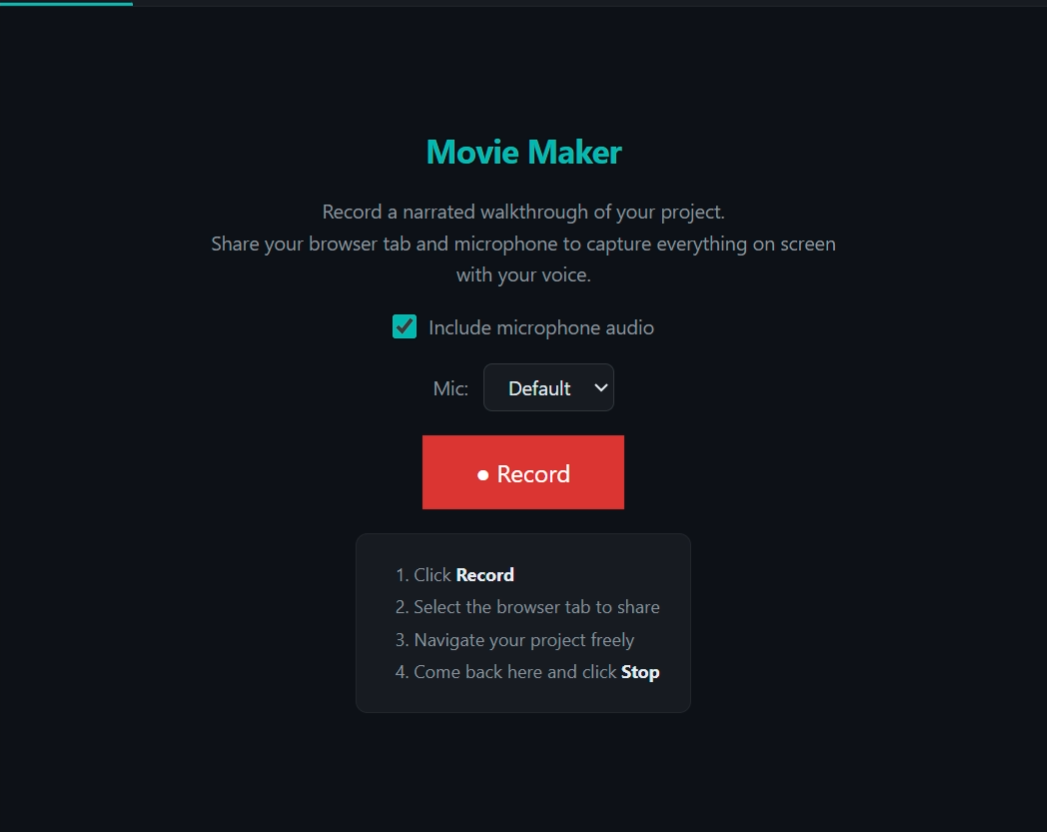
- Click the Record button in the GV toolbar (or inside Movie Maker)
- Browser shows "Share tab" dialog — pick the tab to record
- Recording starts with timer in toolbar; navigate freely between views
- Click Record again to stop (or Stop in Movie Maker)
- Video auto-saves with metadata (thumbnail, duration, silence regions)
- GV opens Movie Maker Library showing the new recording
Silence Detection
During recording, a Web Audio AnalyserNode samples microphone frequency data at ~100ms intervals. When the average amplitude drops below threshold (5/255) for 2+ consecutive seconds, that stretch is marked as a silence region with start/end timestamps.
Smart Playback Engine
When Smart Playback is enabled, the player monitors timeupdate events and checks the current position against silence regions. During silence, playback rate jumps to 16x (Chrome's max). When talking resumes, it drops back to 1x. The result: a 10-minute recording with 4 minutes of silence plays in ~6:15.
MCP Tools
gv_recording_status
Check if Movie Maker is currently recording.
gv_execute_script
Execute a scripted walkthrough with timed steps. Supports actions like show_3d, set_view, set_camera, start_tour, stop_tour, display, caption, and wait. Each step has a duration and optional caption overlay.
HTTP API
| Route | Method | Description |
|---|---|---|
/videos/list | GET | List all recordings with metadata |
/videos/{filename} | GET | Stream video (Range request support) |
/save-video | POST | Save a recording blob |
/videos/metadata | POST | Save metadata JSON |
/videos/{filename} | DELETE | Delete a recording |
/scripts/list | GET | List all scripts |
/scripts/save | POST | Save a script |
/execute-script | POST | Execute a script server-side |
File Locations
| Path | Contents |
|---|---|
project-content/videos/ | Recorded .webm files |
project-content/videos/*.meta.json | Per-video metadata |
viewer/viewer/movie-maker.html | Movie Maker UI (Record, Library, Scripts tabs) |
viewer/viewer/record-popup.html | Popup recording fallback |
viewer/server.js | Server routes for video/script CRUD |