Basic3dView
Install this skill

Paste this into Claude Code (VS Code panel, Adom editor, or terminal) to install:

Search the Adom Wiki for the skill "Basic3dView" (slug: basic-3d-viewer) at https://wiki-ufypy5dpx93o.adom.cloud/wiki/skills/basic-3d-viewer and install it into my local ~/.claude/skills/basic-3d-viewer/ directory. Fetch the skill_source content from the wiki page and save it as SKILL.md. Then confirm it's installed by showing the first 5 lines.
?
What is a skill? Skills are instructions that teach AI assistants like Claude Code how to perform specific tasks. The description below is loaded into the AI as context when you invoke this skill. Well-written skills make the AI significantly more effective. Like Wikipedia, anyone can improve a skill by clicking Edit AI Skill — or have your AI submit an edit on your behalf.

Screenshots

Description

Edit AI Skill

What It Does

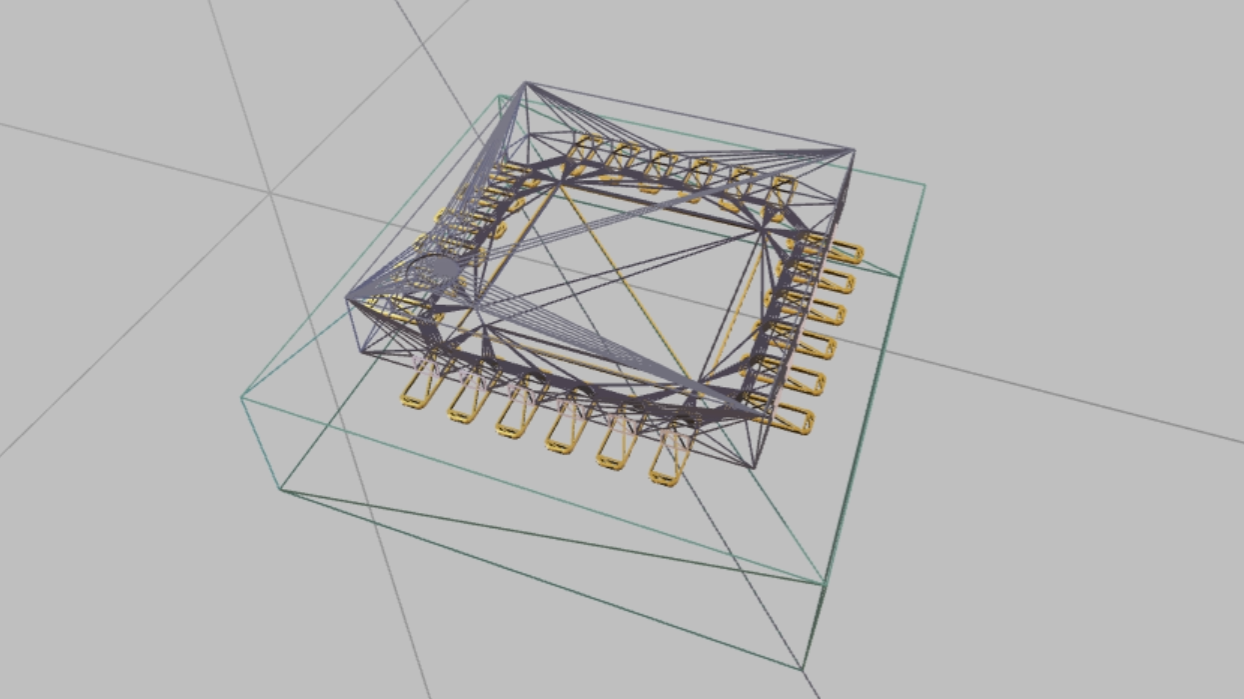
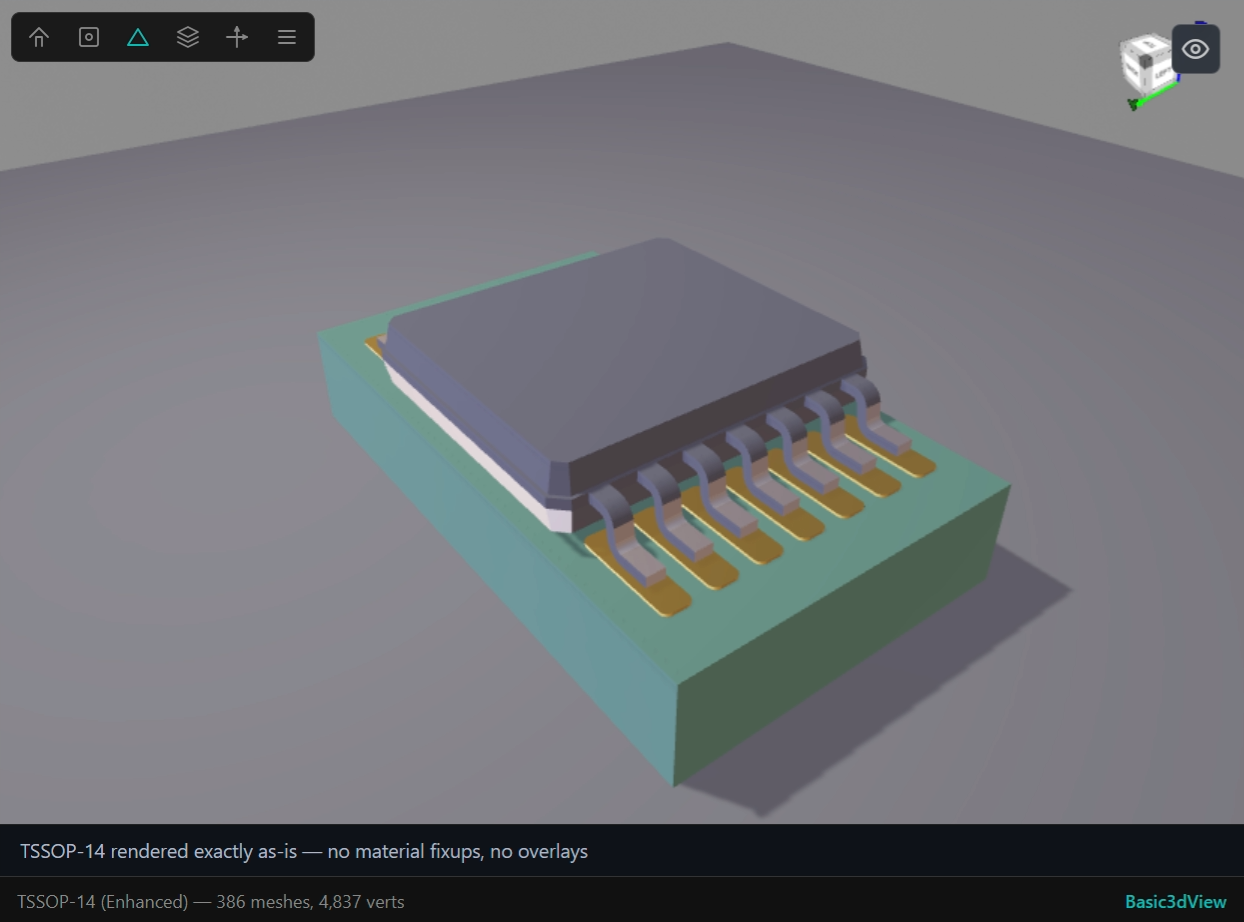
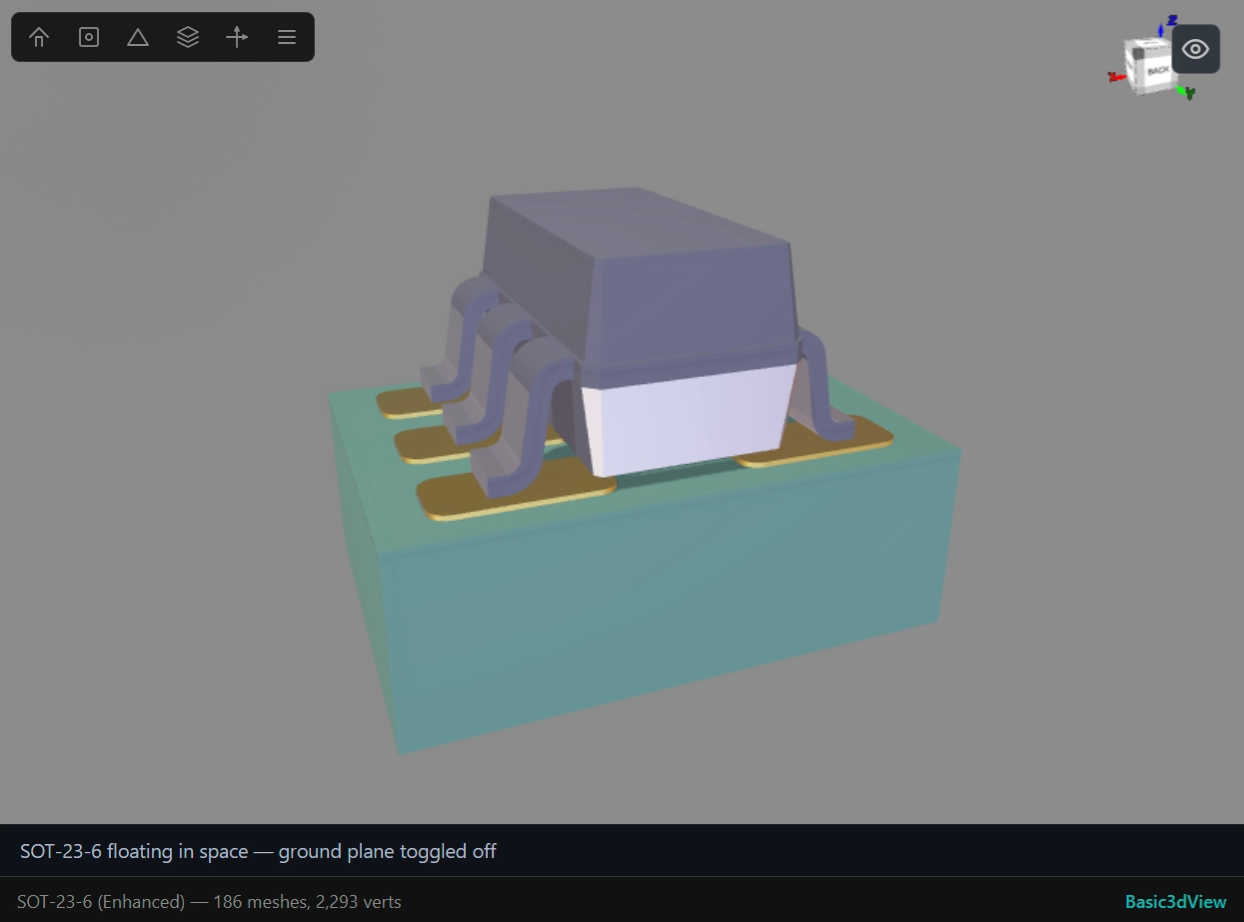
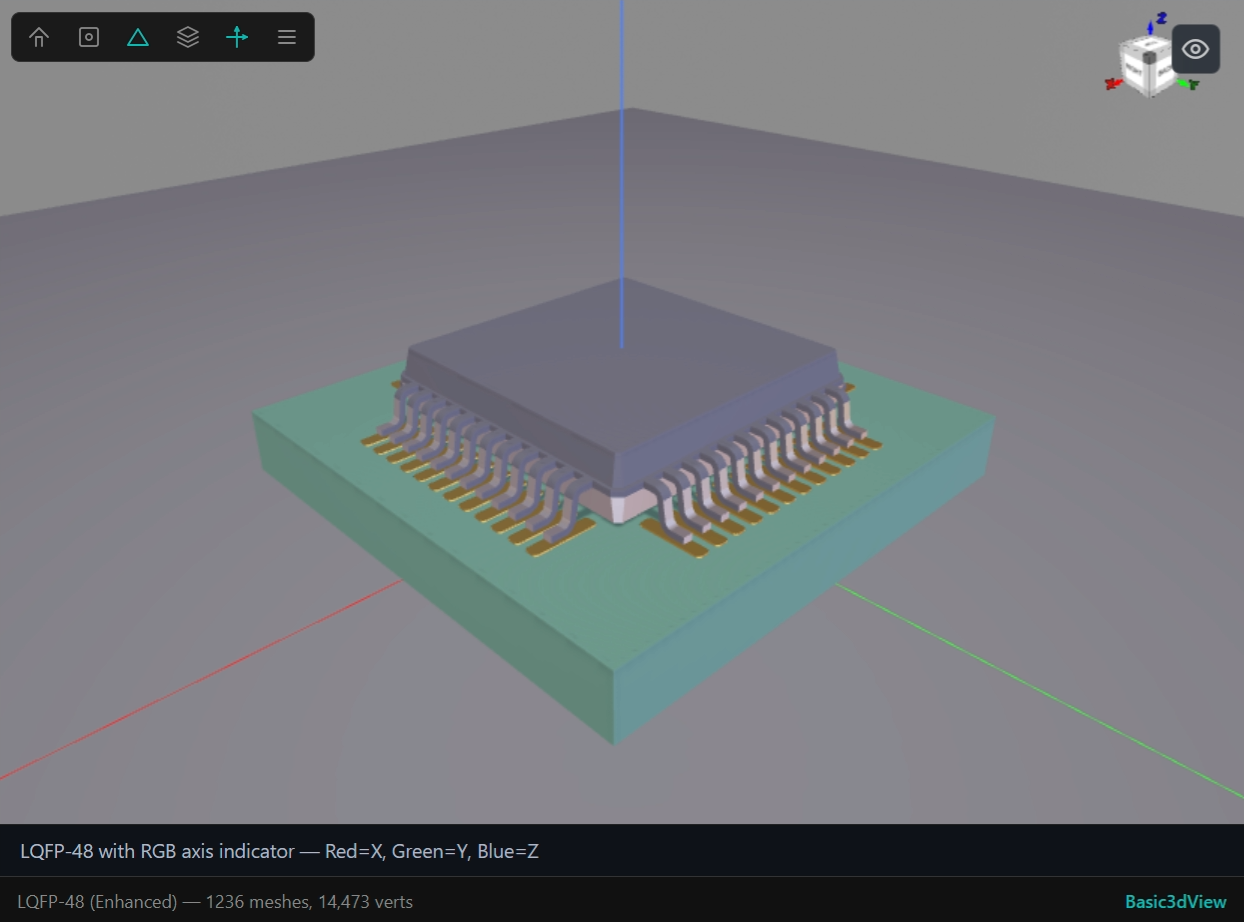
Basic3dView is a stripped-down Babylon.js 3D viewer that shows GLB files exactly as the file contains them. No material fixups, no laser etch markings, no synthetic pad overlays, no FR4 detection, no cinematic camera tours.

Why?

The full 3dView applies material fixup (dark body, silver leads, copper pads), laser etch markings, synthetic pad overlays, FR4 detection, and cinematic camera tours. This is great for presentation but makes it hard to debug what the raw GLB actually contains. Basic3dView fills that gap — use it for testing, comparison, and raw inspection.

Usage

MCP Tool

av_basic_3d_display({ glb_path: "/path/to/model.glb", title: "My Part" })

Drag & Drop

Open the Adom Viewer and drag any .glb or .gltf file directly onto the viewer.

HTTP API

# Step 1: Copy GLB to serving directory
SERVE=$(curl -s -X POST http://localhost:8771/api \
  -H 'Content-Type: application/json' \
  -d '{"action":"serve_glb","glbPath":"/path/to/model.glb"}')

# Step 2: Extract the URL
GLB_URL=$(echo "$SERVE" | python3 -c 'import sys,json; print(json.load(sys.stdin)["glbUrl"])')

# Step 3: Display in Basic3dView
curl -s -X POST http://localhost:8771/api \
  -H 'Content-Type: application/json' \
  -d "{\"action\":\"show_basic_3d\",\"modelUrl\":\"$GLB_URL\",\"options\":{\"title\":\"My Component\"}}"

Toolbar

ButtonFeatureDefault
HomeReset camera to initial position
FrameZoom to fit model
GroundToggle ground planeON
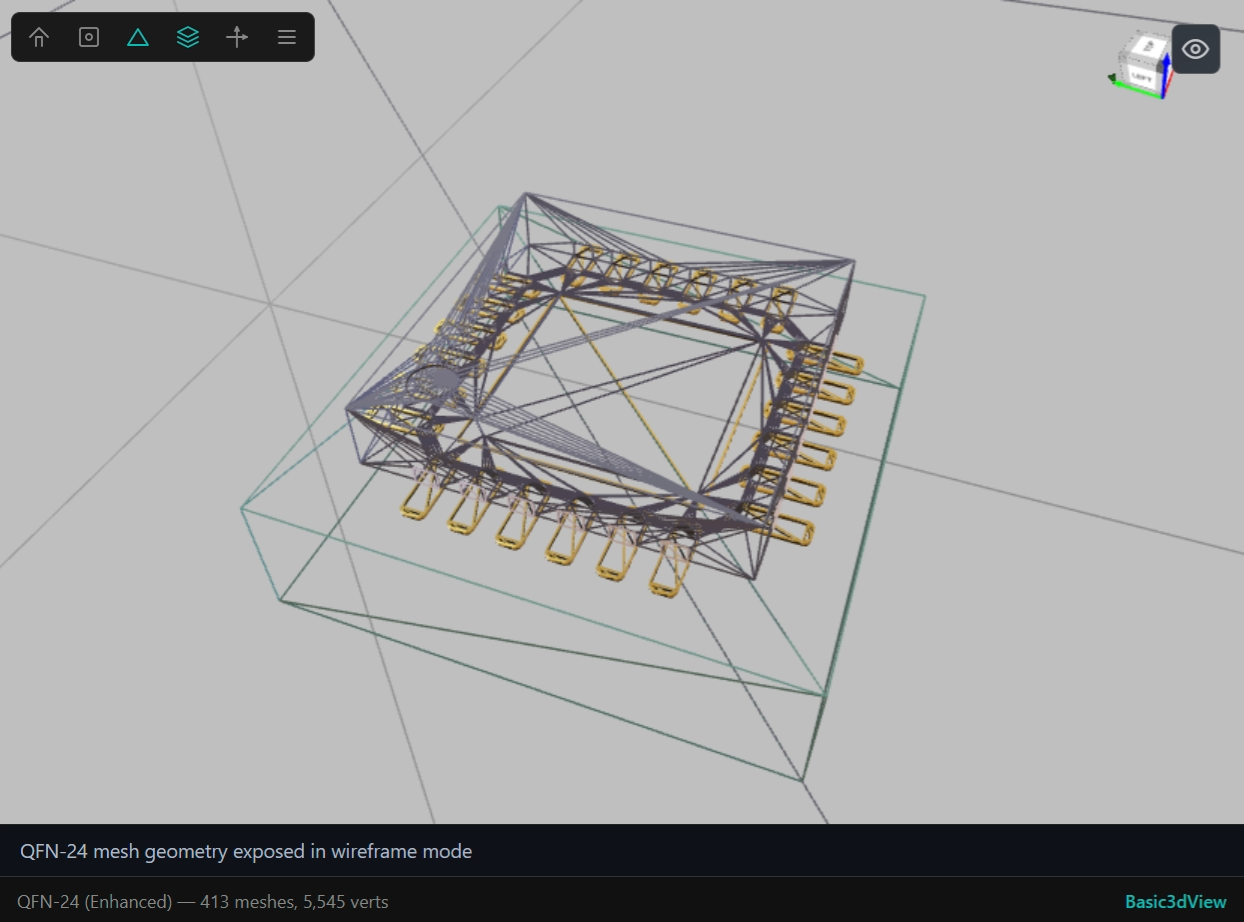
WireframeToggle wireframe rendering on all meshesOFF
AxesToggle XYZ axis lines (R=X, G=Y, B=Z)OFF
MeasureMeasure distance between two points (mm)OFF
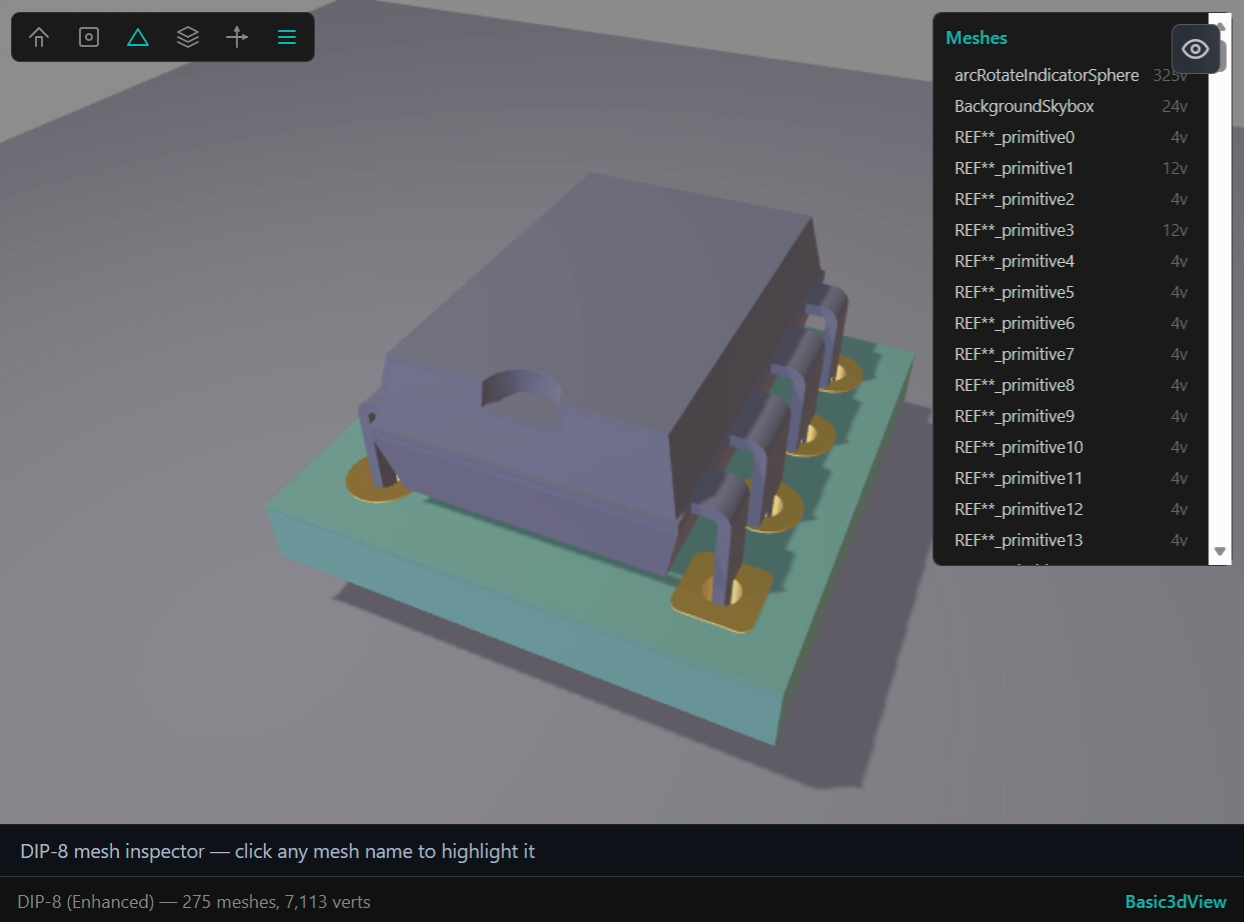
MeshesOpen mesh list panel (draggable)OFF

Mesh Panel

The mesh list panel shows all meshes in the loaded model with per-mesh controls:

  • Eye toggle — show/hide individual meshes. Hidden meshes show a strikethrough name and dimmed eye icon. Useful for isolating specific parts of a model (e.g. show only wheels, hide body).
  • Axis toggle — show/hide RGB origin axes at the mesh's local pivot point (R=X, G=Y, B=Z) with a white dot at the origin. Useful for verifying rotation pivots (e.g. wheel axles). Axis length auto-scales to 30% of the mesh's bounding diagonal.
  • Draggable — grab the "Meshes" header to drag the panel anywhere in the viewport.

The panel state (visibility, axes) is reflected in av_capture composite screenshots.

Measure Tool

Click the ruler icon to enter measure mode (cursor becomes crosshair). Click a first point on the model (teal marker), then click a second point — a white measurement line appears with a floating mm label at the midpoint. The label tracks the camera as you orbit. Press Escape to exit measure mode and clear the measurement.

Programmatic Control

Toggle toolbar features, set camera angles, captions, and fill colors remotely — useful for automated screenshots or scripted demos.

# Toggle a toolbar button
curl -s -X POST http://localhost:8771/api \
  -H 'Content-Type: application/json' \
  -d '{"action":"basic3d_toggle","name":"wireframe"}'

# Set camera angle
curl -s -X POST http://localhost:8771/api \
  -H 'Content-Type: application/json' \
  -d '{"action":"basic3d_set_camera","alpha":-2.5,"beta":1.0}'

# Set caption text (shown above the info bar)
curl -s -X POST http://localhost:8771/api \
  -H 'Content-Type: application/json' \
  -d '{"action":"basic3d_set_caption","text":"Description here"}'

# Red-box calibration (fill iframe for pixel-perfect screenshot cropping)
curl -s -X POST http://localhost:8771/api \
  -H 'Content-Type: application/json' \
  -d '{"action":"basic3d_fill","color":"#FF0000"}'

Toggle names: ground, wireframe, axes, measure, meshes

Mesh Visibility Control

# Hide meshes by name substring
curl -s -X POST http://localhost:8771 -H 'Content-Type: application/json' -d '{
  "action": "post_message",
  "message": {"type":"mesh_visibility","match":"body","visible":false}
}'

# Solo mode — show only matching meshes, hide all others
curl -s -X POST http://localhost:8771 -H 'Content-Type: application/json' -d '{
  "action": "post_message",
  "message": {"type":"mesh_visibility","match":"wheel","solo":true}
}'

# Show all meshes again
curl -s -X POST http://localhost:8771 -H 'Content-Type: application/json' -d '{
  "action": "post_message",
  "message": {"type":"mesh_show_all"}
}'

Remote Measure

# Place measurement between two 3D points (coordinates in GLB meters)
curl -s -X POST http://localhost:8771 -H 'Content-Type: application/json' -d '{
  "action": "post_message",
  "message": {"type":"measure","pointA":{"x":-0.0025,"y":-0.002,"z":0.001},"pointB":{"x":0.0025,"y":0.002,"z":0.001}}
}'

# Clear measurement
curl -s -X POST http://localhost:8771 -H 'Content-Type: application/json' -d '{
  "action": "post_message",
  "message": {"type":"clear_measure"}
}'

Info Bar

The bottom info bar shows:

  • Model filename, bounding box (W x D x H mm), mesh count, and vertex count (left)
  • Basic3dView label (right) — identifies this viewer

When to Use This vs Other Viewers

ViewerUse Case
Basic3dView (this)Raw GLB inspection — no transforms, no overlays, testing/comparison
3dView (av_3d_display)Full 3D with material fixup, laser etch, pad highlighting, camera tour
Fp3dView (fp-to-3d.js)Footprint pad geometry: copper shapes, dimensions, land pattern
LibView (av_library_review)Complete library review: symbol + footprint + 3D side-by-side

Skill Source

Edit AI Skill
---
name: basic-3d-viewer
description: Use when the user asks to "show GLB in basic viewer", "show me the raw 3D", "basic 3D view", "show Basic3dView", "compare 3D viewers", "test GLB rendering", "display GLB without fixups", or wants a minimal 3D viewer that renders GLB files exactly as-is without material fixups, overlays, pad highlighting, or camera tours.
---

# Basic3dView — Minimal GLB 3D Viewer

Display GLB files in a stripped-down Babylon.js 3D viewer with zero post-processing. No material fixups, no laser etch, no synthetic pads, no FR4 detection, no camera tours. Shows the model exactly as the GLB contains it — useful for testing and comparing 3D output against other viewers.

**Input**: A `.glb` file path on the container, or drag-and-drop in the browser
**Output**: Interactive 3D view in Adom Viewer with basic toolbar

## MCP Tool

Use `av_basic_3d_display` to load a GLB:

```
av_basic_3d_display({
  glb_path: "/path/to/model.glb",
  title: "My Component"
})
```

**Attribution:** Always pass `viewId`, `skill`, and `author` when pushing to AV — see av-creator skill Rule #3.

Parameters:

| Parameter | Type | Required | Description |
|-----------|------|----------|-------------|
| `glb_path` | string | yes | Absolute path to the `.glb` file |
| `title` | string | no | Title shown in the info bar |

The tool blocks until the model is fully loaded (up to 15s timeout), so you can immediately call `av_capture` afterwards.

## Toolbar

| Button | Feature | Default |
|--------|---------|---------|
| Home | Reset camera to initial position | -- |
| Frame | Zoom to fit model | -- |
| Ground | Toggle ground plane | ON |
| Wireframe | Toggle wireframe rendering on all meshes | OFF |
| Axes | Toggle XYZ axis lines (R=X, G=Y, B=Z) | OFF |
| Measure | Measure distance between two points (mm) | OFF |
| Meshes | Open mesh list panel (draggable) | OFF |

### Mesh Panel

The mesh list panel shows all meshes in the loaded model with per-mesh controls:

- **Eye toggle** — show/hide individual meshes. Hidden meshes show a strikethrough name and dimmed eye icon.
- **Axis toggle** — show/hide RGB origin axes at the mesh's local pivot point (R=X, G=Y, B=Z) with a white dot at the origin. Useful for verifying rotation pivots (e.g. wheel axles). Axis length auto-scales to 30% of the mesh's bounding diagonal.
- **Draggable** — grab the "Meshes" header to drag the panel anywhere in the viewport.

The panel state (visibility, axes) is reflected in `av_capture` composite screenshots.

### Measure Tool

Click the ruler icon to enter measure mode (cursor becomes crosshair). Click a first point on the model (teal marker), then click a second point — a white measurement line appears with a floating mm label at the midpoint. The label tracks the camera as you orbit. Press **Escape** to exit measure mode and clear the measurement.

## Programmatic Control

Toggle toolbar features and set camera angles remotely — useful for automated screenshots or scripted demos.

```bash
# Toggle a toolbar button (ground, wireframe, axes, meshes)
curl -s -X POST http://localhost:8771/api \
  -H 'Content-Type: application/json' \
  -d '{"action":"basic3d_toggle","name":"wireframe"}'

# Set camera angle (Babylon.js ArcRotateCamera params)
curl -s -X POST http://localhost:8771/api \
  -H 'Content-Type: application/json' \
  -d '{"action":"basic3d_set_camera","alpha":-2.5,"beta":1.0}'
```

Toggle names: `ground`, `wireframe`, `axes`, `measure`, `meshes`

## When to Use This vs Other Viewers

| Viewer | Use Case |
|--------|----------|
| **Basic3dView** (this) | Raw GLB inspection — no transforms, no overlays, testing/comparison |
| **3dView** (`av_3d_display`) | Full 3D with material fixup, laser etch, pad highlighting, camera tour |
| **Fp3dView** (`fp-to-3d.js`) | Footprint pad geometry: copper shapes, dimensions, land pattern |
| **LibView** (`av_library_review`) | Complete library review: symbol + footprint + 3D side-by-side |

## Troubleshooting

| Symptom | Cause | Fix |
|---------|-------|-----|
| "Basic 3D viewer page not found" | Server started before HTML file was created | Restart the viewer server |
| Model doesn't appear after API call | Server cached old HTML | Kill and restart `node viewer/server.js` |
| MCP tool `av_basic_3d_display` not found | MCP servers haven't restarted | Use HTTP API fallback |
| Model looks different than in 3dView | Expected — 3dView applies material fixups | Basic3dView shows the raw GLB intentionally |

Sub-Skills
?
What are Sub-Skills?

Sub-skills are community-contributed AI skill extensions for this component. They teach AI assistants about specific tools, configurators, or workflows.

Examples:

  • A manufacturer’s configuration tool for a motor controller
  • A community-written design guide for an amplifier circuit
  • An automated test/validation script for a sensor module

How to add one: Click Add Sub-Skill, provide the URL to your skill and a brief description. Submissions are reviewed by the Adom team before going live.

No sub-skills yet. Be the first to contribute one!

3 revisions · Updated 2026-03-08 11:15:47