Screenshot Paste
The Screenshot Paste widget is an interactive clipboard paste utility that runs inside the Adom Viewer. It provides the fastest way to get screenshots from your browser into the Docker container — one paste instead of save-to-file and drag-drop.
How to use
- Call
av_screenshot_paste(MCP tool) to open the widget in AV - Click anywhere in the widget to focus the paste area
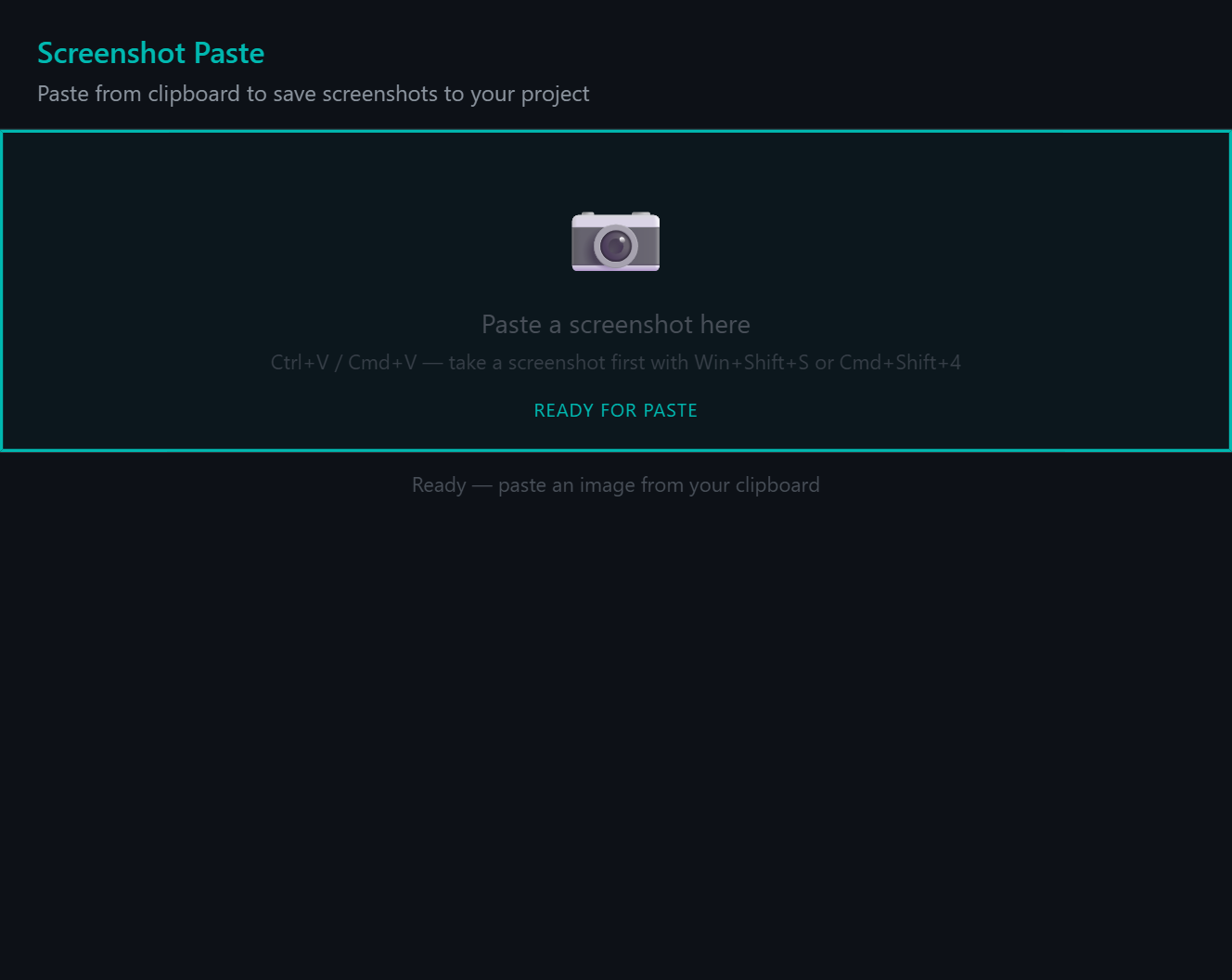
- Press Ctrl+V (or Cmd+V on Mac) to paste a screenshot from your clipboard
- The system automatically processes and saves the image
What happens on paste
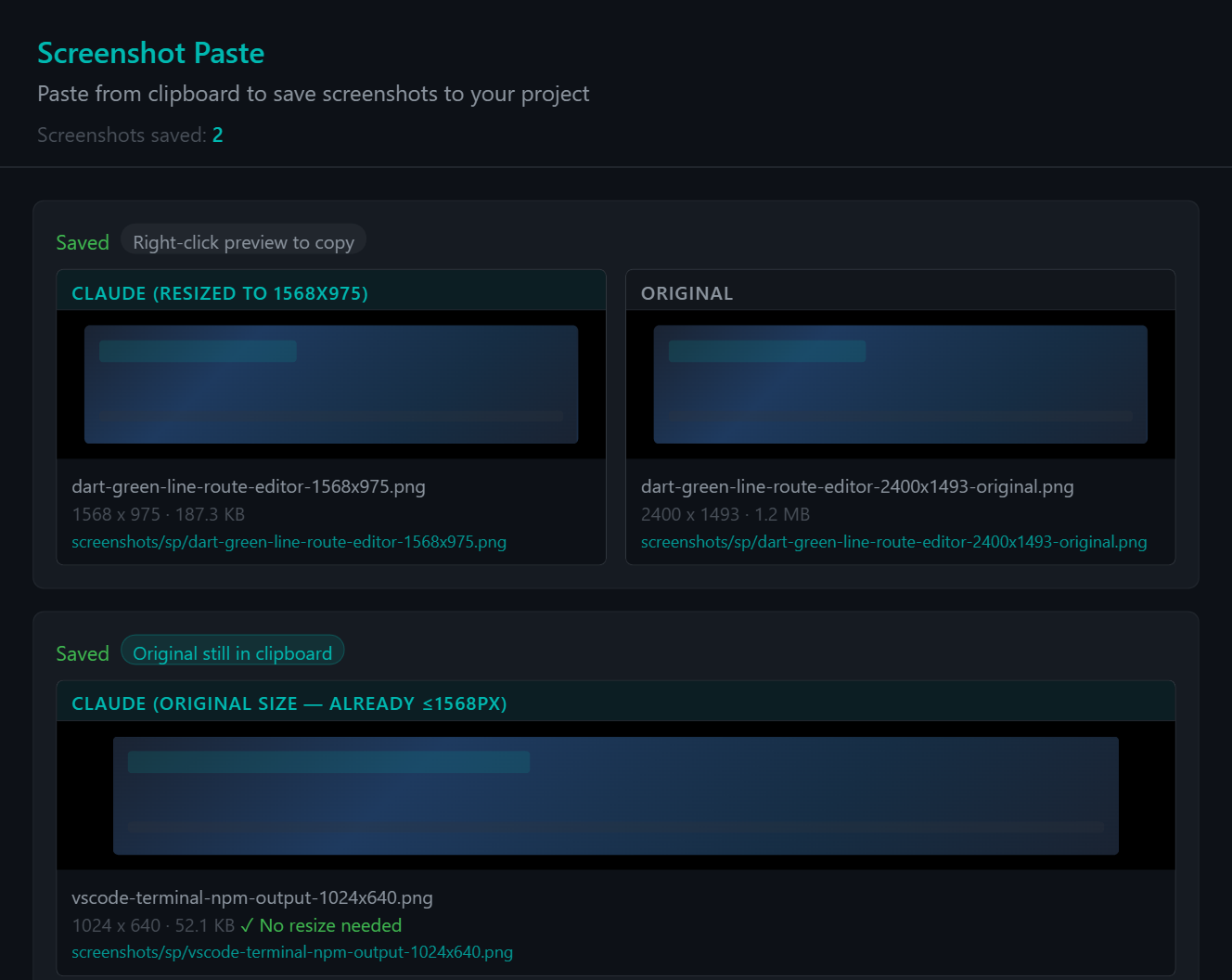
- Resize — If the image exceeds Claude's ideal 1568px max dimension, it's resized proportionally. If already small enough, it's kept as-is with an informational message ("Original still in clipboard").
- Compress — PNGs are compressed with sharp (level 9) for minimal file size while preserving quality.
- AI Name — Haiku analyzes the image and generates a descriptive kebab-case filename including dimensions (e.g.
dart-green-line-route-editor-1568x975.png). - Dual Save — Both the Claude-optimized version and the original are saved to
screenshots/sp/.
Widget UX
Focus tracking
- Teal border + "READY FOR PASTE" label when the paste area has focus
- Click anywhere in the widget to give focus to the paste area
- Paste detection triggers an immediate teal flash animation + status bar update
Two-card layout
After processing, two cards appear side by side:
- Claude card — The resized/optimized version (what Claude will see)
- Original card — The full-size original
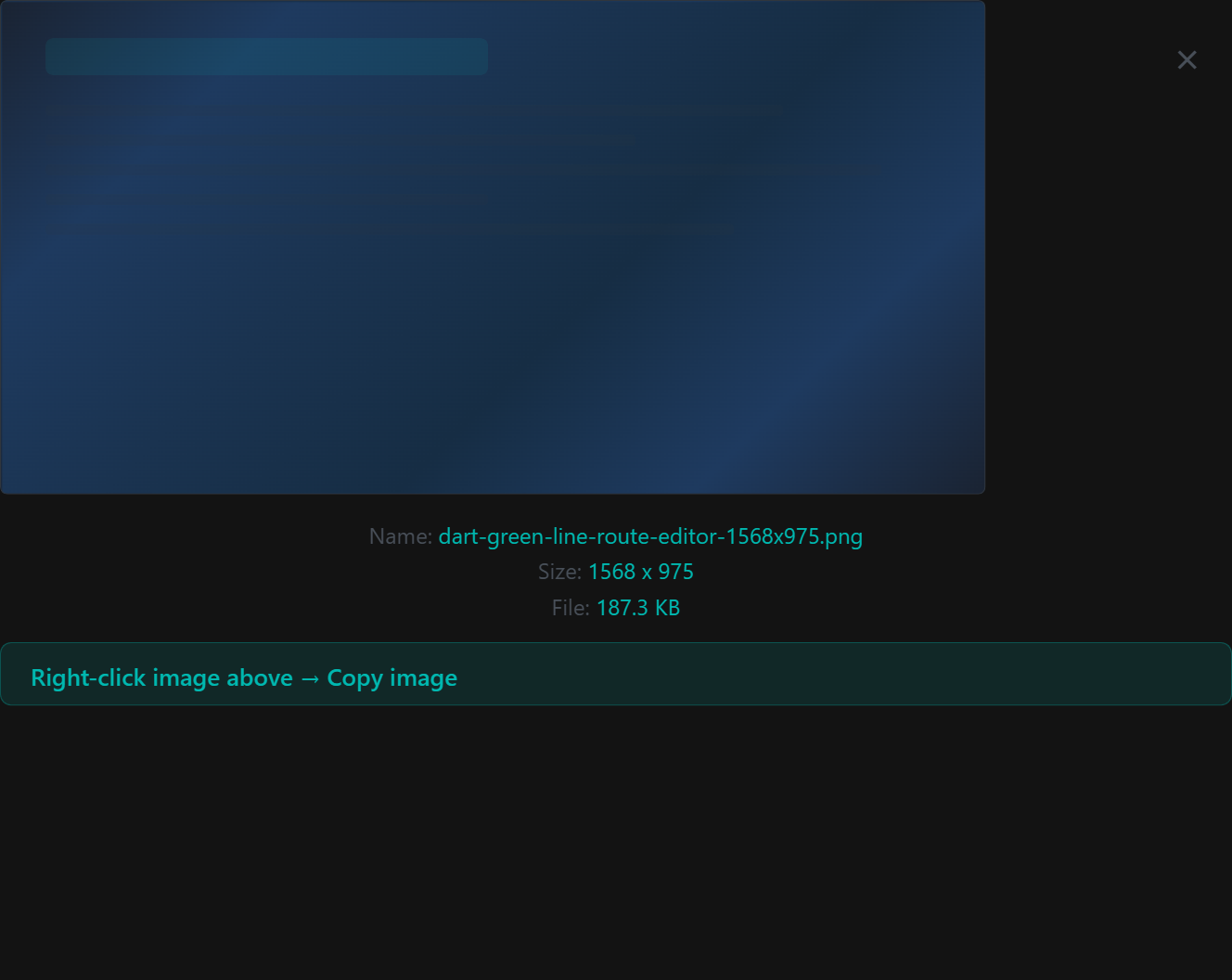
Click either card to open a fullscreen preview overlay.
Smart clipboard badges
The widget shows context-aware clipboard status:
- "Original still in clipboard" — Image didn't need resizing, your clipboard is unchanged
- "Clipboard updated" — Successfully wrote the optimized image back to clipboard
- "Right-click preview to copy" — Clipboard write failed (VS Code webview limitation) and the image was resized. Auto-opens the fullscreen preview with a "Right-click → Copy image" hint so you can manually copy.
Clipboard limitation
VS Code webviews block clipboard-write at the Permissions-Policy level. This means the widget cannot programmatically update your clipboard with the resized image. When this happens and the image was resized, the widget gracefully falls back to showing a fullscreen preview you can right-click to copy.
Architecture
| Component | Location | Purpose |
|---|---|---|
| Widget HTML | viewer/screenshot-paste.js | Generates the interactive paste UI |
| HTTP endpoint | GET /screenshot-paste | Serves fresh HTML (bypasses module cache) |
| Server handler | handleScreenshot() in viewer/server.js | Resize, compress, save, AI naming |
| MCP tool | av_screenshot_paste | Opens the widget in AV |
| Storage | project-content/screenshots/sp/ | Saved screenshots (isolated from avShot/tabShot) |
Rendering
The widget is rendered as html_interactive content in a non-sandboxed <iframe srcdoc> with allow="clipboard-write". This gives the widget its own document for paste events while avoiding sandbox restrictions.
Tab metadata
The MCP tool sets tab metadata for proper attribution:
source: 'av_screenshot_paste'skill: 'screenshot-paste'author: 'Adom'
The skill field maps to a clipboard icon in the AV tab bar.
MCP Tool
mcp__adom-viewer__av_screenshot_paste({ title: 'Paste Screenshots' })
No parameters are required. The widget opens immediately in the active AV panel.
File naming convention
| Stage | Pattern | Example |
|---|---|---|
| Initial (before AI) | sp-{timestamp}-{width}x{height}.png | sp-20260307-152030-1568x975.png |
| After AI naming | {ai-name}-{width}x{height}.png | dart-green-line-route-editor-1568x975.png |
| Original (after AI) | {ai-name}-{width}x{height}-original.png | dart-green-line-route-editor-2400x1493-original.png |